Microsoft Teams Integration
Send real-time incident notifications and alerts directly to Microsoft Teams channels for immediate team awareness.
Overview
The Microsoft Teams Integration allows Ampliserv to:
- Send incident alerts to Teams channels
- Post status updates for ongoing incidents
- Include rich details with actionable buttons
- Support @mentions for specific team members
- Maintain message history in Teams conversations
Supported Teams Versions
🟢 Teams Standard/Free
- Webhook connector
- Basic message posting
- Rich card support
🟢 Microsoft 365 Teams
- Full Teams integration
- Adaptive Cards
- Actionable messages
🔄 Teams Admin Center
- Manage connectors organization-wide
- Approval workflows
- Security policies
Prerequisites
Before configuring Teams integration, you need:
1. Microsoft Teams Access with:
- Permission to add connectors to channels
- Access to target channel(s)
- Microsoft 365 account (for some features)
2. Target Channel prepared:
- Channel where alerts will be posted
- Appropriate team members added
- Notification settings configured
3. Webhook URL generated:
- From Teams connector
- Stored securely
- Tested for accessibility
Step-by-Step Configuration
Step 1: Create Teams Incoming Webhook
-
Navigate to target channel in Teams:
- Open Microsoft Teams
- Click on the three dots(...) next to the Chat header
- Click on Your teams and channels
- After the teams names get appeared, click on the teams name
- Click "⋯" (More options) next to channel name
- Select "Manage channel"
- Click Edit button inside Connectors section
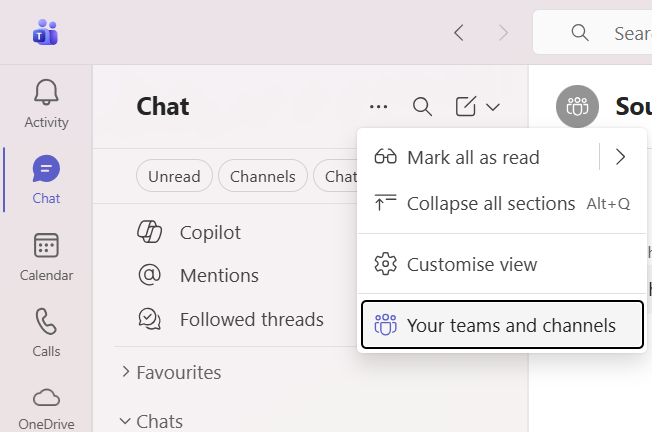
Figure 1: Find Teams channels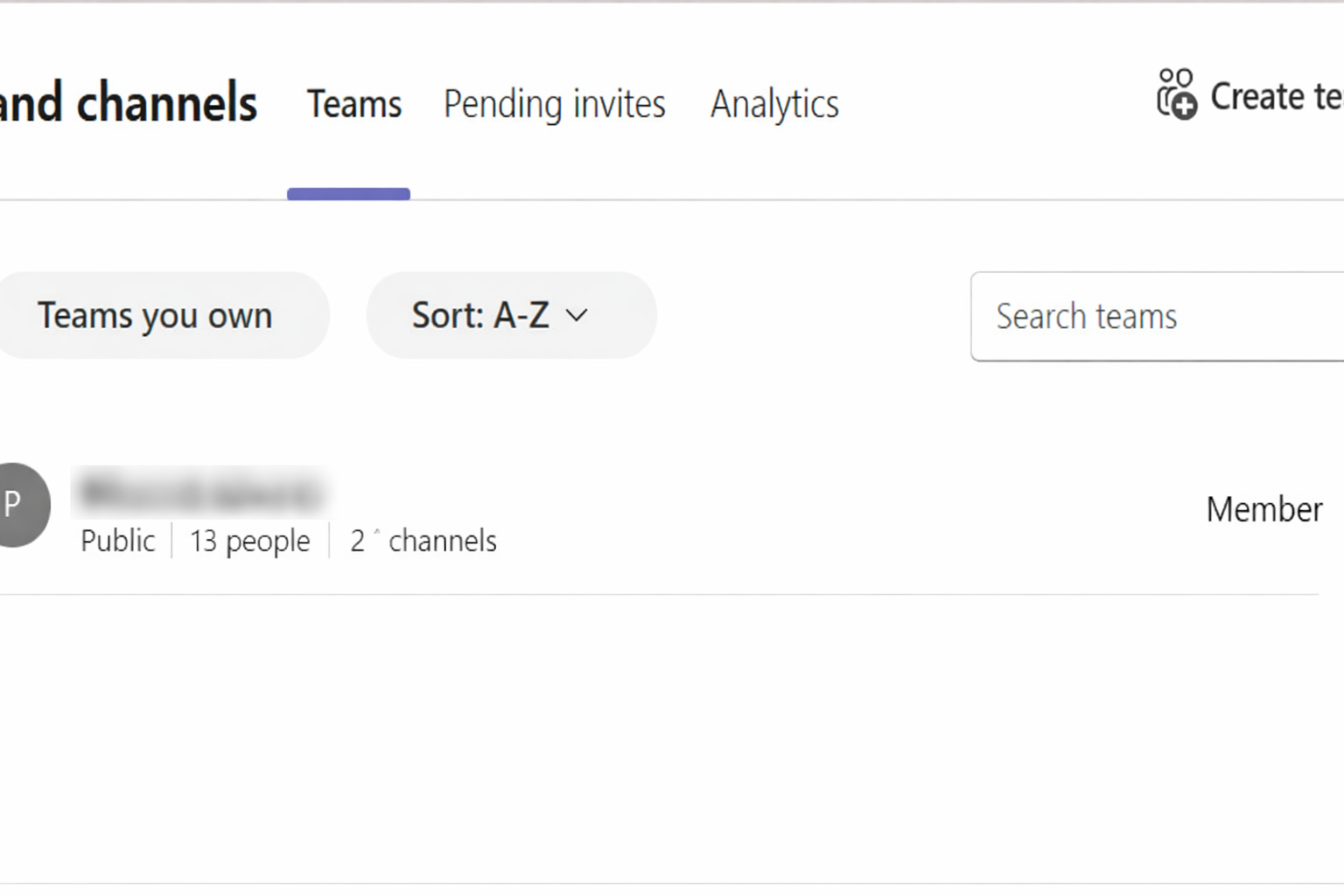 Figure 2: List of Team names - you need to click on it
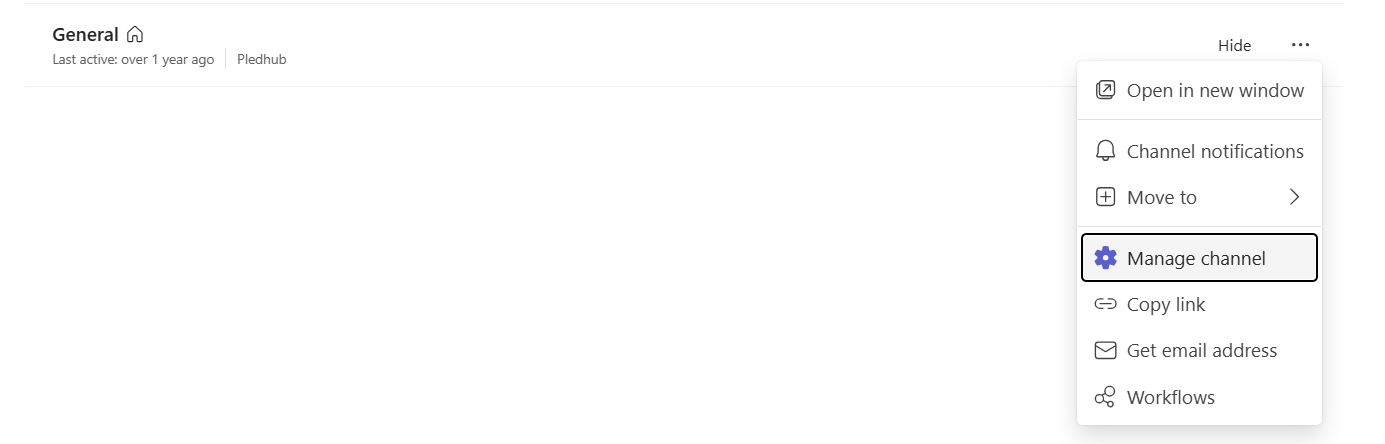 Figure 3: Click on manage channel option
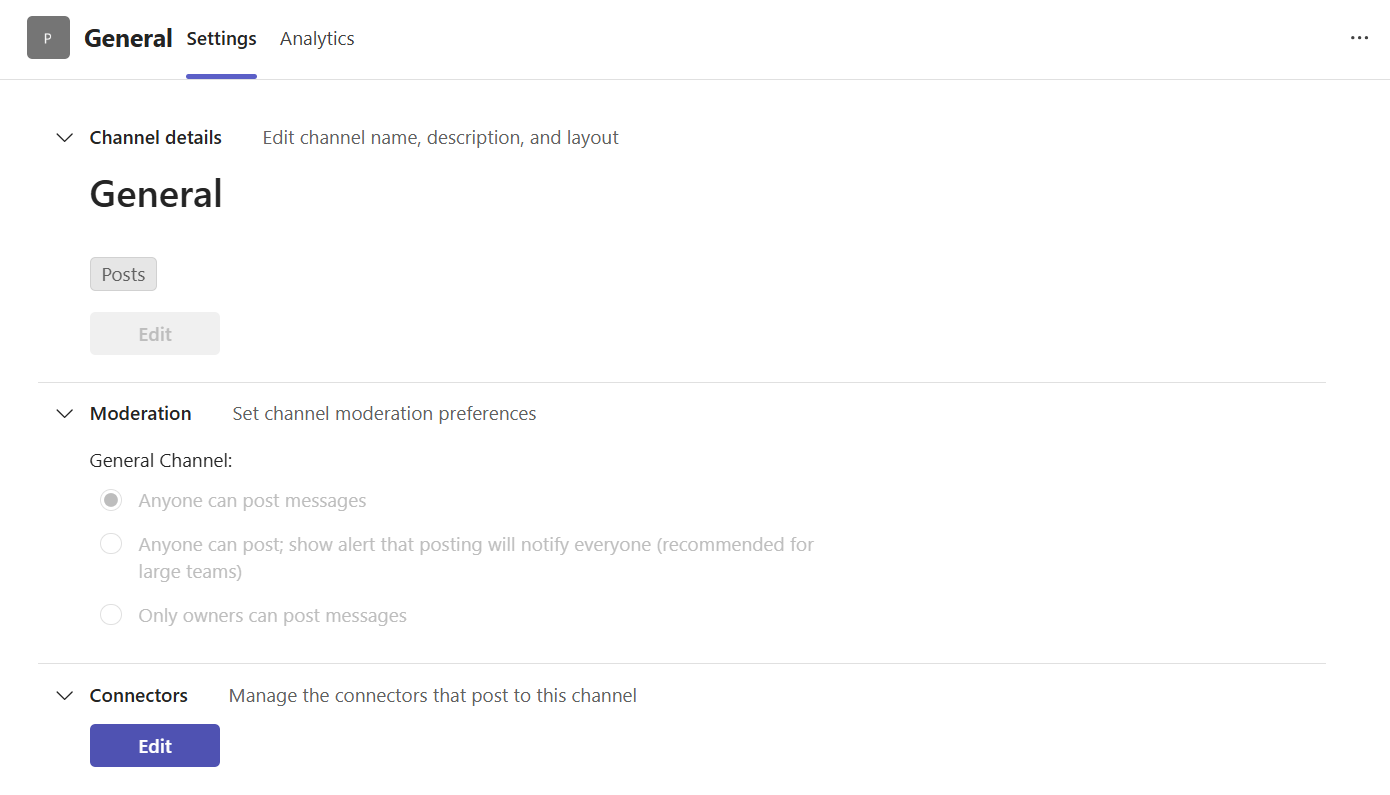 Figure 4: Click on the edit button
 -
Search and add "Incoming Webhook":
- Search for "Incoming Webhook"
- Click "Add" or "Configure"
- Click "Add" again to create new webhook
-
Configure webhook:
- Name: "Ampliserv Alerts"
- Upload image (optional): Use Ampliserv logo
- Click "Create"
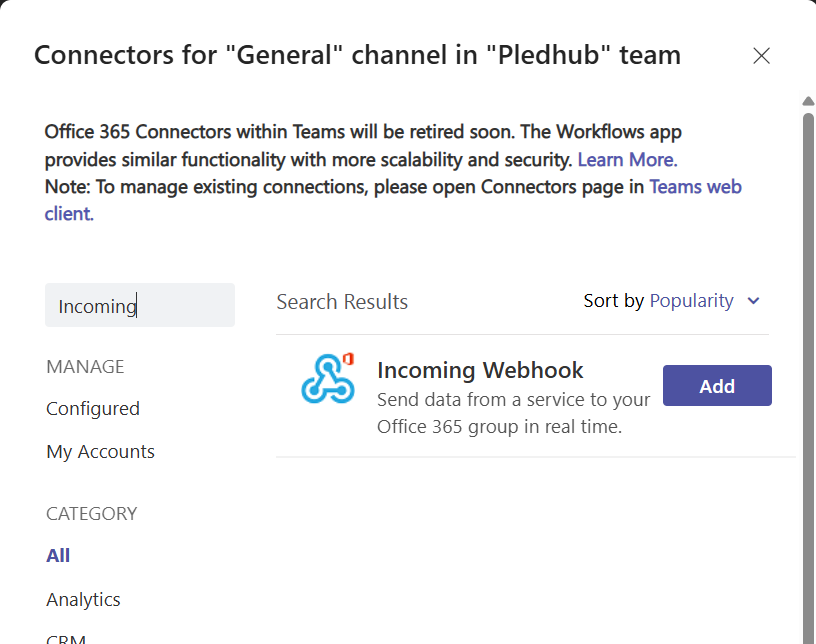
Figure 5: Search for Incoming webhook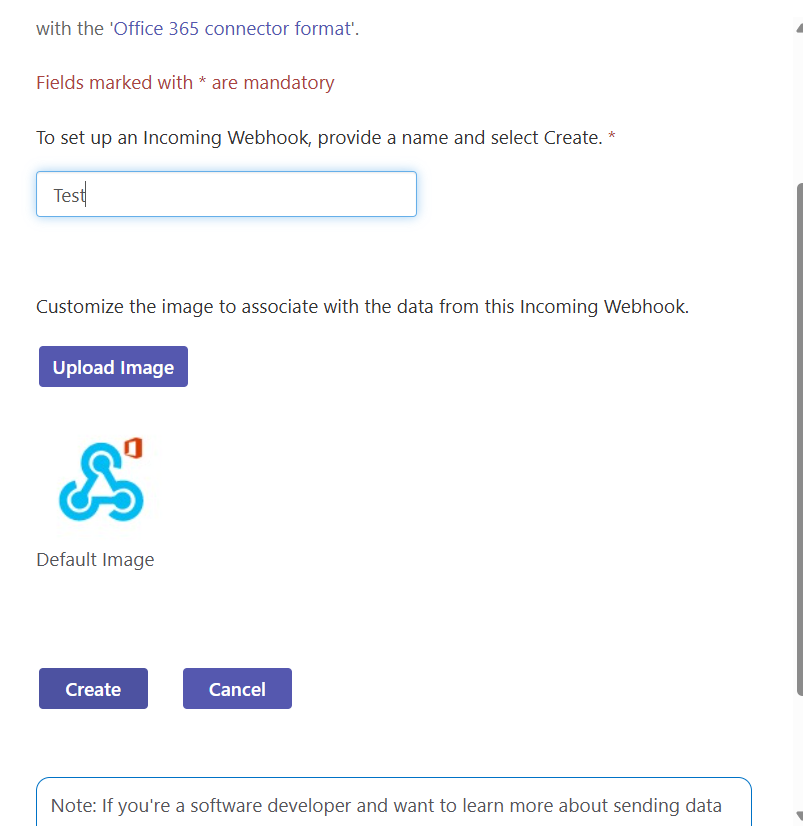 Figure 6: Give name and add logo(optional)
 -
Copy Webhook URL:
- IMPORTANT: Copy the URL immediately
- Store it securely (like a password)
- Click "Done"
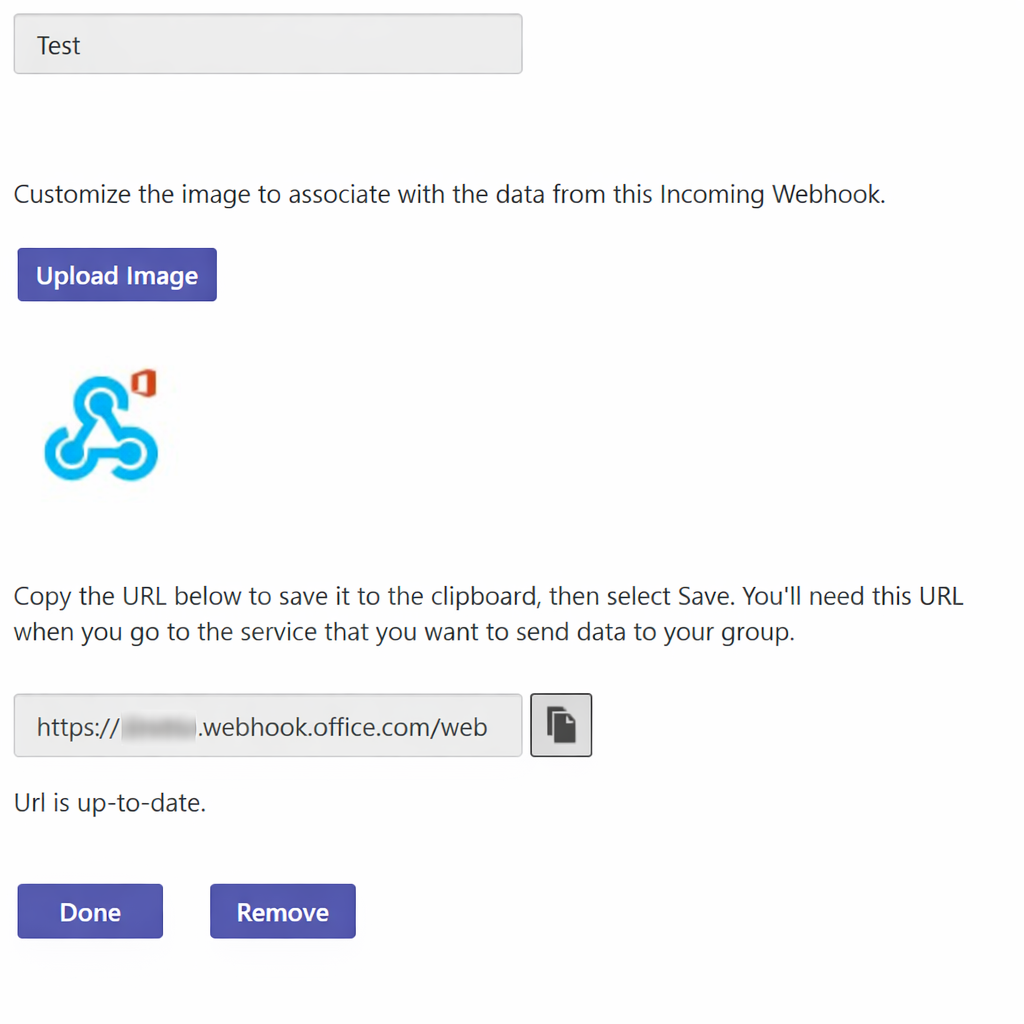 Figure 7: Copy webhook url
⚠️ Security Note: This URL allows anyone to post to your channel. Keep it secret!
Step 2: Configure in Ampliserv
-
Access Teams Integration in Ampliserv:
- Login to Ampliserv dashboard
- Navigate to Integrations → Microsoft Teams
- Click Configure button
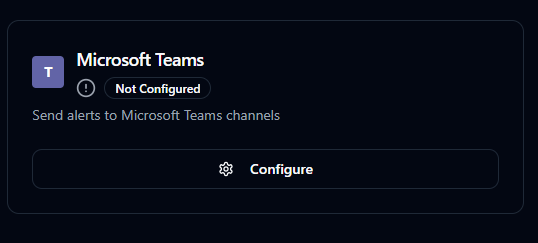 Figure 8: Teams configuration card
 -
Enter Webhook URL:
- Paste the webhook URL from Step 1
- Click Save Configuration
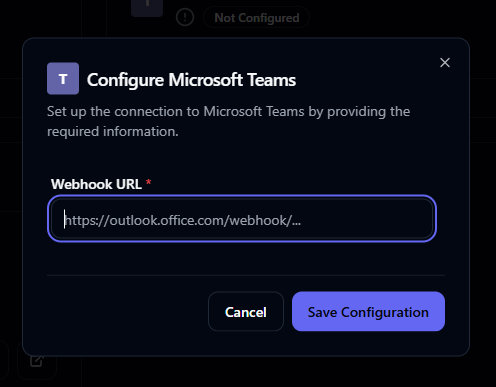 Figure 9: Teams configuration form
 -
Verify Connection:
- Status should change to Connected
- Now after creation of any incident, message may appear in channel