Tools Integrations Guide
Connect Ampliserv with your existing tools to streamline incident management and notifications.
🔌 Available Integrations
Communication Tools
- Email Notifications - Send incident and Jira ticket notifications
- Microsoft Teams - Send alerts to Teams channels
- Slack (Coming Soon) - Send incident alerts to Slack
Issue Tracking
- Jira Integration - Automatically create Jira tickets for incidents
- GitHub Issues (Coming Soon) - Create GitHub issues for incidents
CI/CD
- GitHub Actions (Coming Soon) - Link to deployments and automation
🎯 Integration Benefits
| Benefit | Description |
|---|---|
| Automated Alerts | Get notified instantly when incidents occur |
| Ticket Creation | Automatically create Jira tickets for critical issues |
| Team Collaboration | Keep everyone informed through their preferred channels |
| Centralized Management | Manage all notifications from one dashboard |
🚀 Getting Started
Step 1: Access Integrations
- Login to your Ampliserv dashboard
- Navigate to Integrations in the sidebar
- View all available integrations
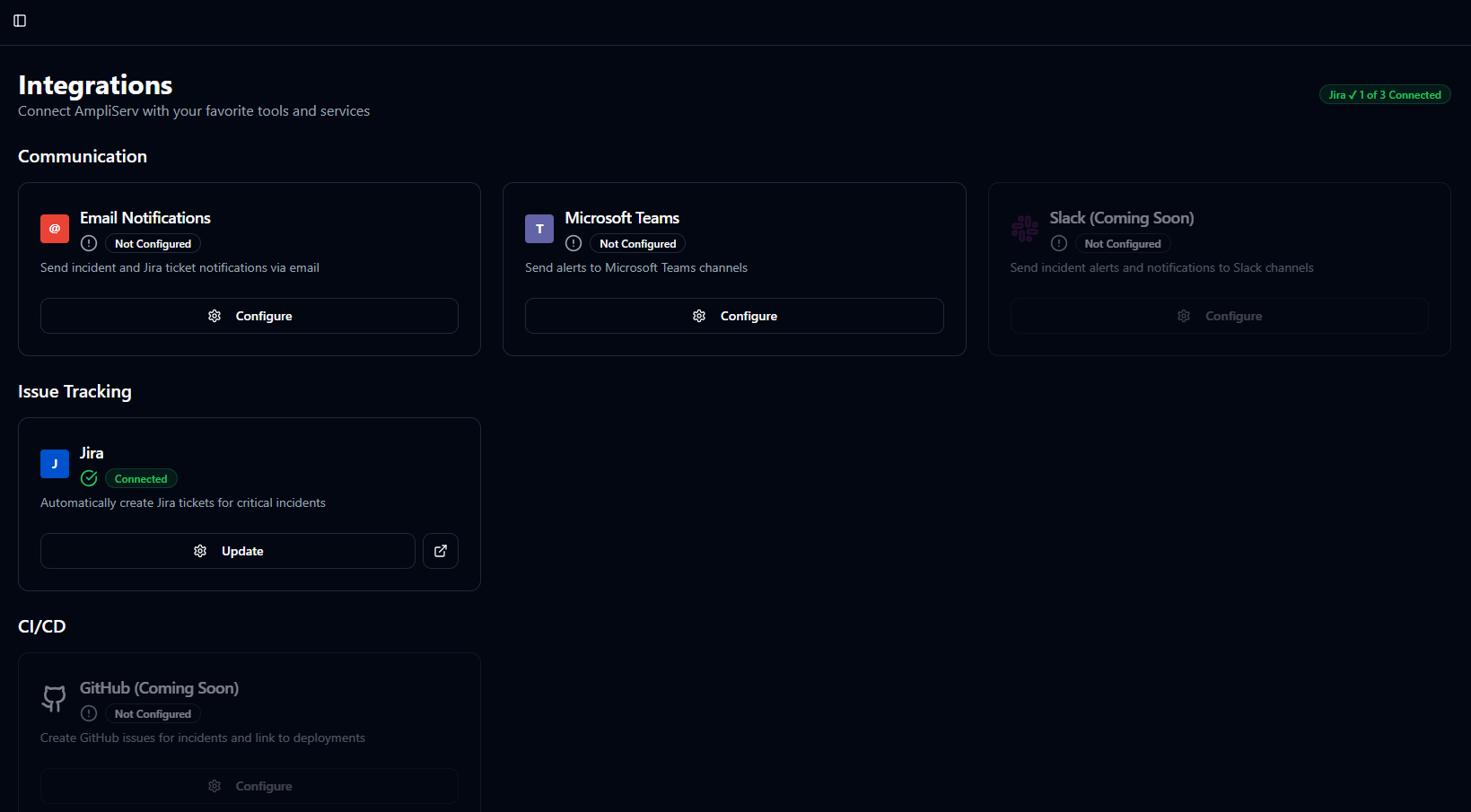
Figure 1: Integrations dashboard showing available tools
Step 2: Configure an Integration
- Click "Configure" on any integration card
- Fill in the required credentials
- Click "Save Configuration"
- Verify the connection status
Step 3: Test & Verify
- Trigger a test incident
- Check if notifications are delivered
- Verify ticket creation (for Jira)
- Adjust settings as needed
🔧 Prerequisites
Before configuring any integration:
- ✅ Ampliserv account set up and active
- ✅ Administrator access to the target tool
- ✅ API credentials/keys from the target tool
- ✅ Network access between Ampliserv and the tool
⚙️ Common Configuration Fields
Most integrations require:
- API Keys/Tokens - For authentication
- URLs/Endpoints - Where to send data
- Project/Channel IDs - Specific destination
- User Permissions - Access rights needed
🔄 Integration Status
Each integration shows one of three statuses:
🟢 Connected
- Configuration saved
- Connection verified
- Ready to receive data
🟡 Configured
- Configuration saved
- Connection issues detected
- Check credentials and network
⚪ Not Configured
- No configuration saved
- Click "Configure" to set up
📊 Integration Dashboard
View all integrations at a glance:
- Status indicators for each tool
- Connection counts (X of Y connected)
- Quick configuration buttons
- Test connection options
🔍 Testing Your Integrations
Method 1: Manual Test
- Navigate to the integration
- Click "Test Connection" (if available)
- Check for success/error messages
Method 2: Trigger Test Incident
- Create a test incident in Ampliserv
- Monitor all connected tools
- Verify notifications/tickets created
❓ Troubleshooting
Common Issues
Issue: "Authentication failed"
Solution: Regenerate API keys and update configuration
Issue: "Connection timeout"
Solution: Check network/firewall settings, verify URLs
Issue: "No notifications received"
Solution: Verify notification settings, check spam folders
Issue: "Permissions denied"
Solution: Ensure user has proper access rights in target tool
Debug Steps
- Verify credentials - Are they still valid?
- Check network - Can Ampliserv reach the tool?
- Review logs - Any error messages?
- Test manually - Can you access the tool directly?
- Contact support - If issues persist
🛠️ Managing Multiple Integrations
Best Practices
- Start Simple - Configure one integration at a time
- Test Thoroughly - Verify each works before adding more
- Document Settings - Keep records of configurations
- Regular Reviews - Check integration status weekly
- Update Credentials - Rotate API keys periodically
Organization Tips
- Group by team/department
- Use descriptive names for configurations
- Set up separate channels for different incident types
- Establish notification hierarchies
🔄 Updating Integrations
When you need to update an integration:
- Click "Update" on the integration card
- Modify the necessary fields
- Save the configuration
- Test the updated connection
Note: Some fields (like passwords) remain empty for security. You only need to re-enter them if changing.
🗑️ Removing Integrations
To disconnect an integration:
- Open the integration configuration
- Clear all required fields
- Save the configuration
- Status will change to "Not Configured"
Warning: Removing an integration stops all notifications/ticket creation for that tool.
📈 Monitoring Integration Health
Monitor your integrations through:
- Status badges on integration cards
- Dashboard summary (connected count)
- Incident logs (check for failed notifications)
- Regular testing (schedule weekly tests)
🔜 Coming Soon
Planned Integrations
- Slack - Full Slack integration with channel management
- PagerDuty - Escalation policies and on-call schedules
- Datadog - Metrics and monitoring integration
- Custom Webhooks - Send data to any HTTP endpoint
- ServiceNow - IT service management integration
Feature Updates
- Bulk configuration - Set up multiple integrations at once
- Integration templates - Pre-configured setups for common tools
- Advanced routing - Conditional notifications based on incident severity
- Analytics dashboard - Track integration performance and usage
🆘 Support Resources
Need help with integrations?
- Documentation: This guide and integration-specific pages
- Email Support: integrations@ampliserv.com
- Troubleshooting Guide: Common Issues
- Community Forum: Coming soon
- Live Chat: Available in the dashboard
Next Steps
Ready to connect your first tool? Choose from:
- Email Integration - For team notifications
- Jira Integration - For ticket management
- Teams Integration - For team collaboration
Integration questions? Email integrations@ampliserv.com with your organization name and tool details.