Frontend SDK Integration
Integrate Ampliserv's Frontend SDK to monitor user interactions, track errors, and record sessions in your web application.
Overview
The Ampliserv Frontend SDK is a lightweight JavaScript library that provides:
- Error tracking and reporting
- User session recording
- Performance monitoring
- Real-time incident reporting
- Framework-agnostic (works with React, Vue, Angular, or plain HTML/JS)
Integration Methods
Method 1: HTML Script Tag (Recommended)
Add the SDK directly to your HTML - works with any framework or vanilla JavaScript.
Step-by-Step Integration Guide
Step 1: Access Installation Instructions
- Login to Ampliserv
- Complete onboarding Step 1 (Project Setup)
- Select "Frontend SDK" in Step 2
- Proceed to Step 3 for installation instructions
Step 2: Add Script Tag to HTML
Copy the provided script tag and add it to your HTML <head> section:
<!-- Add this to your HTML <head> -->
<script src="https://s3.ap-southeast-2.amazonaws.com/dev-app.ampliserv.io/sdk/latest/incident-sdk.min.js"></script>


Step 3: Initialize the SDK
Add the initialization script after the SDK script tag:

<script>
  // Initialize SDK with your configuration
  window.incidentSDK = new window.IncidentSDK.IncidentReportingSDK({
    apiKey: 'YOUR_API_KEY_HERE',          // Auto-filled from your account
    projectKey: 'your-project-key',       // Auto-generated from project name
    apiEndpoint: 'https://dev-backend.ampliserv.com/api/portal/v1',
    vconEndpoint: 'https://dev-backend.ampliserv.com/api/portal/v1',
    userId: 'user-123',                    // Optional: Current user ID
    userEmail: 'user@example.com',         // Optional: Current user email
    enableSessionRecording: true,          // Record user sessions
    enableNetworkLogging: true,            // Log network requests
    enableConsoleLogging: true,            // Capture console logs
    autoShowOnError: true,                 // Show UI on errors
    debugMode: true                        // Enable debug logging
  });

  window.incidentSDK.initialize().then(() => {
            console.log('✅ SDK initialized globally (framework-agnostic)');
            document.dispatchEvent(new CustomEvent('incidentSDKReady', {
              detail: { sdk: window.incidentSDK }
            }));
          }).catch(error => {
            console.error('❌ SDK initialization failed:', error);
          });

        } catch (error) {
          console.error('❌ Failed to create SDK instance:', error);
        }
      } else {
        setTimeout(initializeSDK, 100);
      }
    }

    // Start initialization
    if (document.readyState === 'loading') {
      document.addEventListener('DOMContentLoaded', initializeSDK);
    } else {
      initializeSDK();
    }
</script>
Note: Your apiKey and projectKey are automatically filled in the onboarding wizard. Just copy the complete code snippet.
Screenshots & Visual References
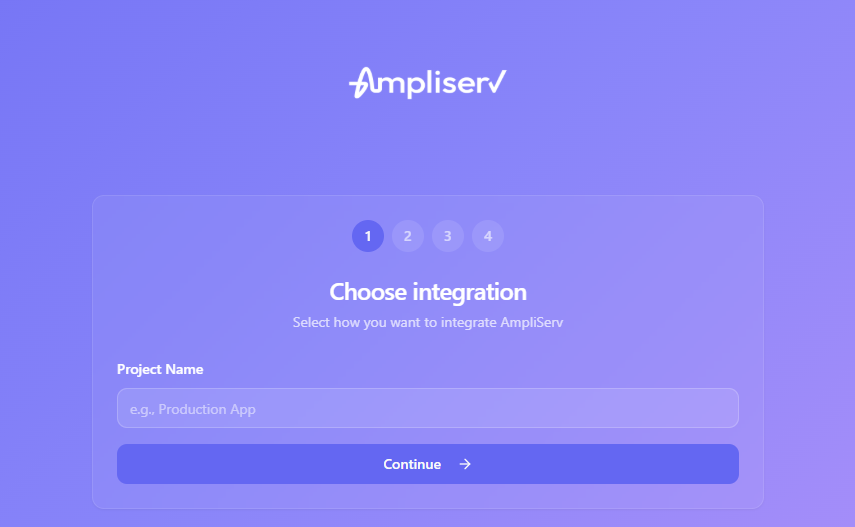
Figure 1: Setting project name during onboarding
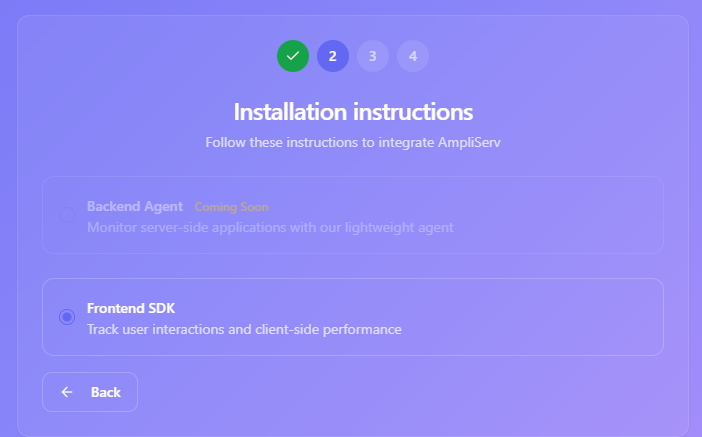
Figure 2: Frontend SDK option screen
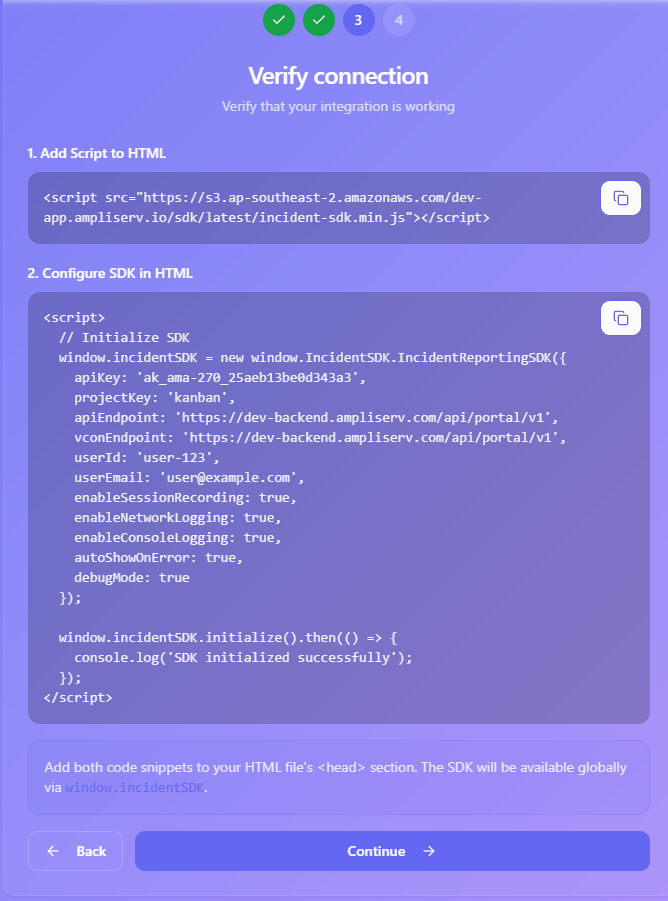
Figure 3: Copying the SDK script tag and the SDK installation code
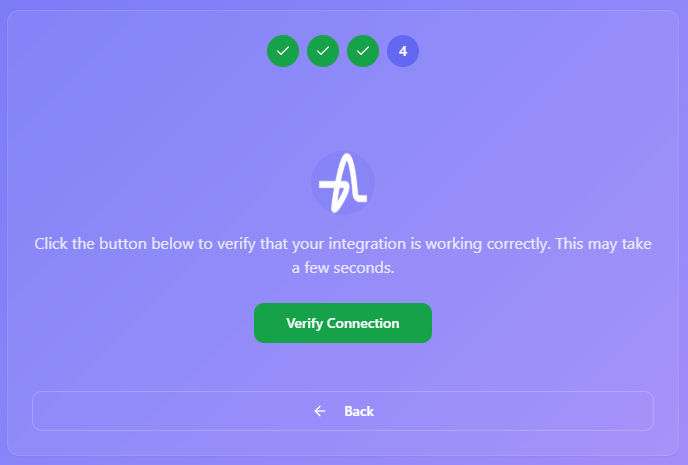
Figure 4: Need to click on the button after putting the commands to your own application's index.html file