Account Setup: Organization & User Creation
Ampliserv uses a two-step setup process: First create your organization, then create your administrator account.
Step 1: Create Organization
This step creates your organization space and generates a secure API key.
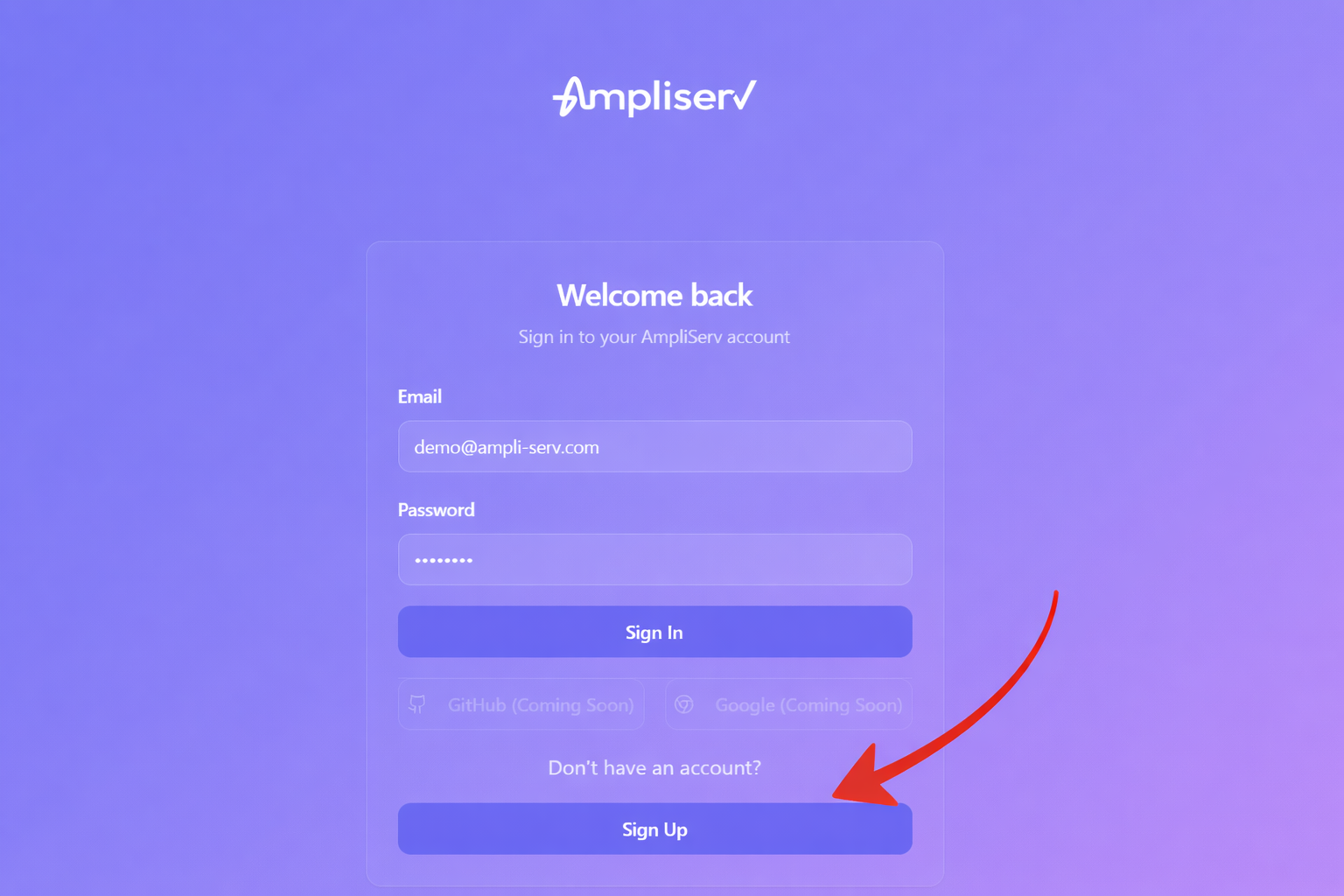
Access the Signup Page
-
Navigate to landing
Go tohttps://dev-app.ampliserv.io- click on Sign Up button
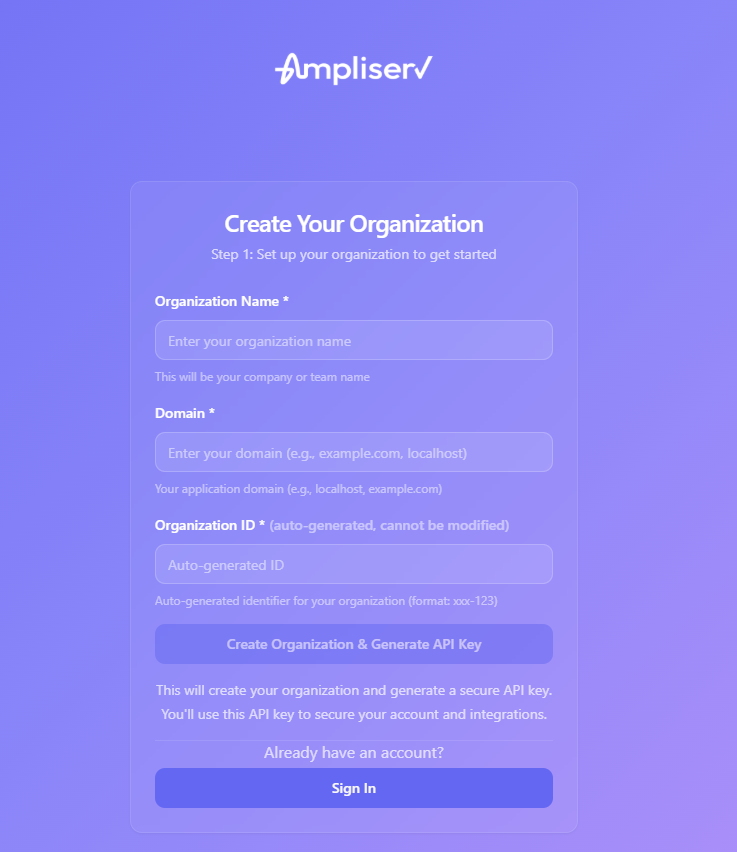
Fill Organization Details
-
Enter organization information
- Organization Name: Your company or team name
- Domain: Your application domain (e.g.,
localhost,example.com)
-
Organization ID auto-generation
As you type your organization name, a unique ID is automatically generated:- Format:
xxx-123(e.g.,abc-456) - Cannot be modified
- Used for API calls and tenant identification
- Format:
Create Organization
-
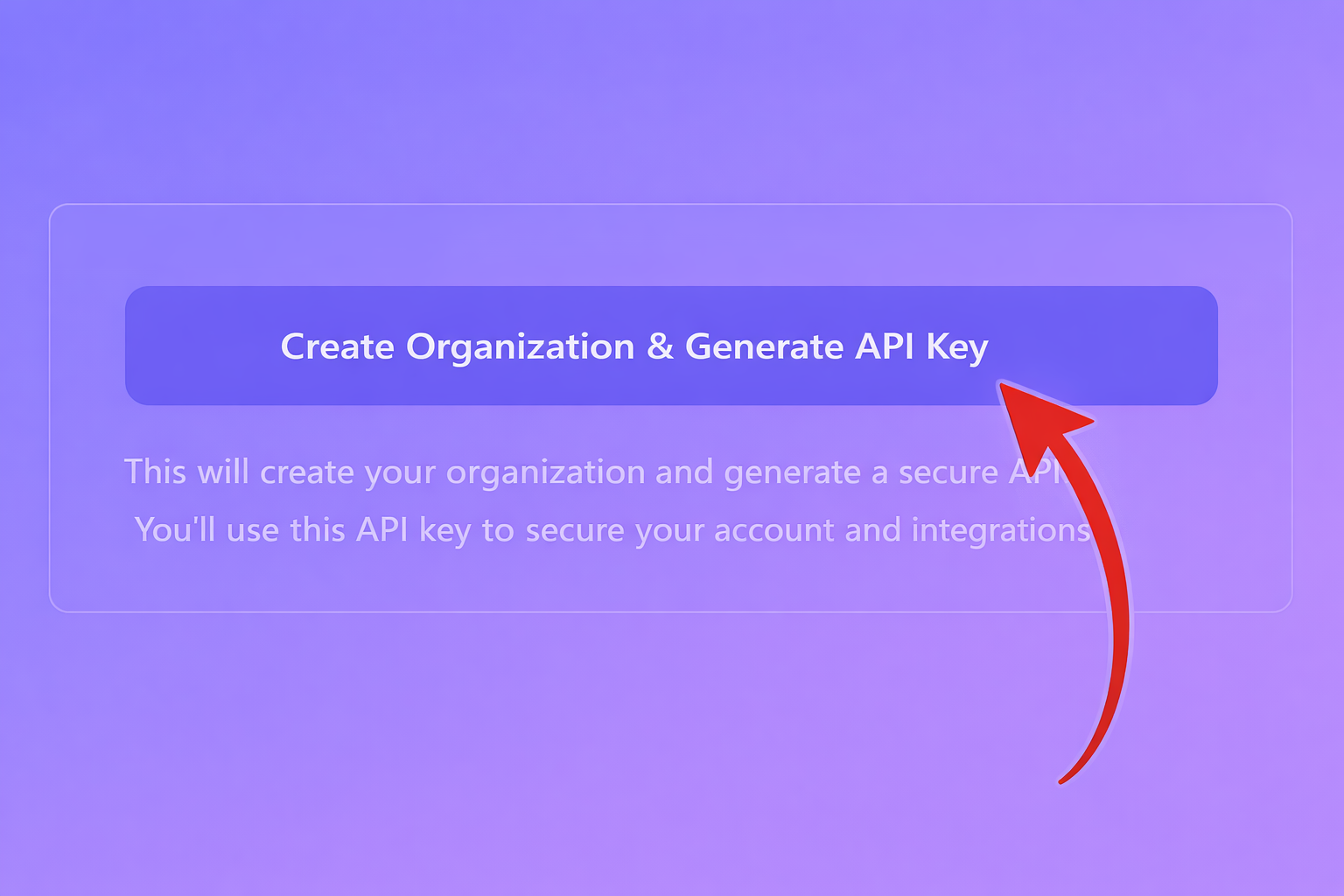
Click "Create Organization & Generate API Key"
This will:- Create your organization tenant
- Generate a secure API key
- Save the API key to your browser's storage
- Proceed to Step 2
What Happens Behind the Scenes
When you create your organization, Ampliserv automatically:
- Generates API Key: A secure key for your integrations
- Sets Up Tenant: Creates isolated workspace for your organization
- Saves Configuration: Stores API key locally for immediate use
- Prepares Account Creation: Moves to user account setup
Important: Your API key is automatically saved to localStorage and will be used when you create your account. No need to copy/paste!
Step 2: Create User Account
After organization creation, you'll set up your administrator account.
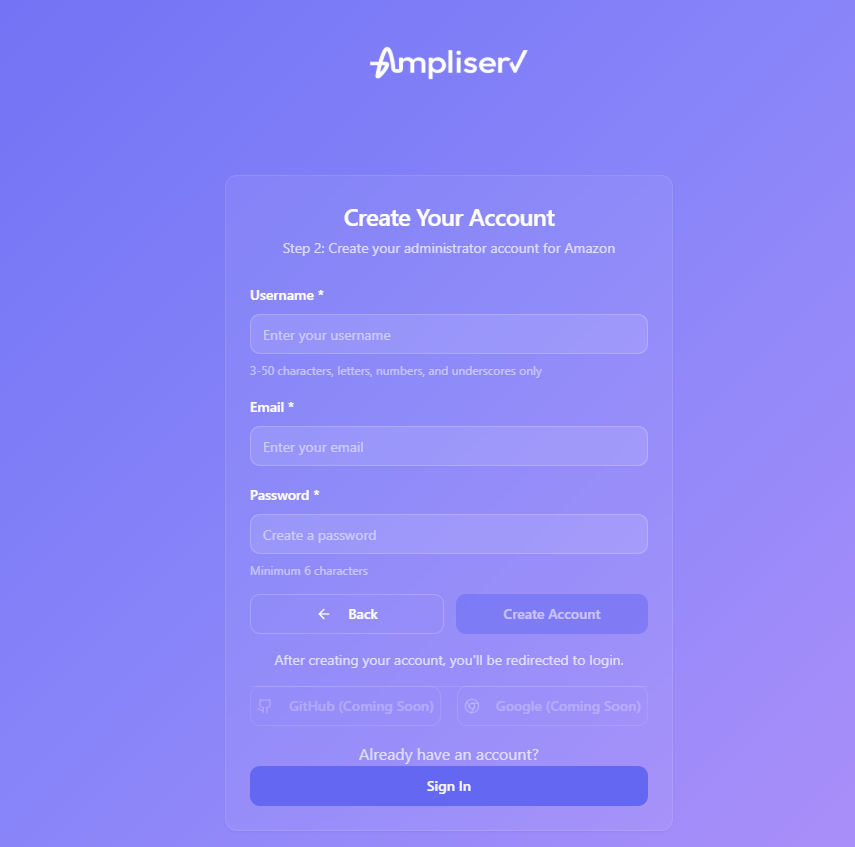
Account Details
-
Fill in your personal information
- Username: 3-50 characters (letters, numbers, underscores)
- Email: Your work email address
- Password: Minimum 6 characters
Create Account
-
Click "Create Account"
This will:- Create your administrator account
- Associate it with your organization
- Save API key configuration
- Show success message
- Redirect to login page